GPU Passthrough in KVM, why?
I have been using GNU/Linux systems for a long time now (~14 years) and a thing that i always hated is the fact that some software (let’s be real, games) runs only on Windows, and that is a major problem for me, since i don’t want to use Windows at all, but i also want to play my beloved Destiny 2; the solution is to use a virtual machine with GPU passthrough, and that is not trivial as i imagined, but it is actually very doable and the performance are pretty decent (with juicy setups).
The objective
I wanted a fully functional Windows 10 VM with my RX580 in passthrough, and i wanted to be able to use it for gaming, so the VM had to be all the optimization option possible, we are talking about cpu pinning, hugepages and all the good stuff. Moreover, i wanted to achive the least possibile lag with my peripherals, so i also wanted to passthrough my USB controller. Let’s not forget to mention that i dedicated a physical monitor to the VM, this to avoid RDP, VNC, Parsec or any method that would add latency to the experience, and also to be able to use the full potential of the GPU.
A bit of context
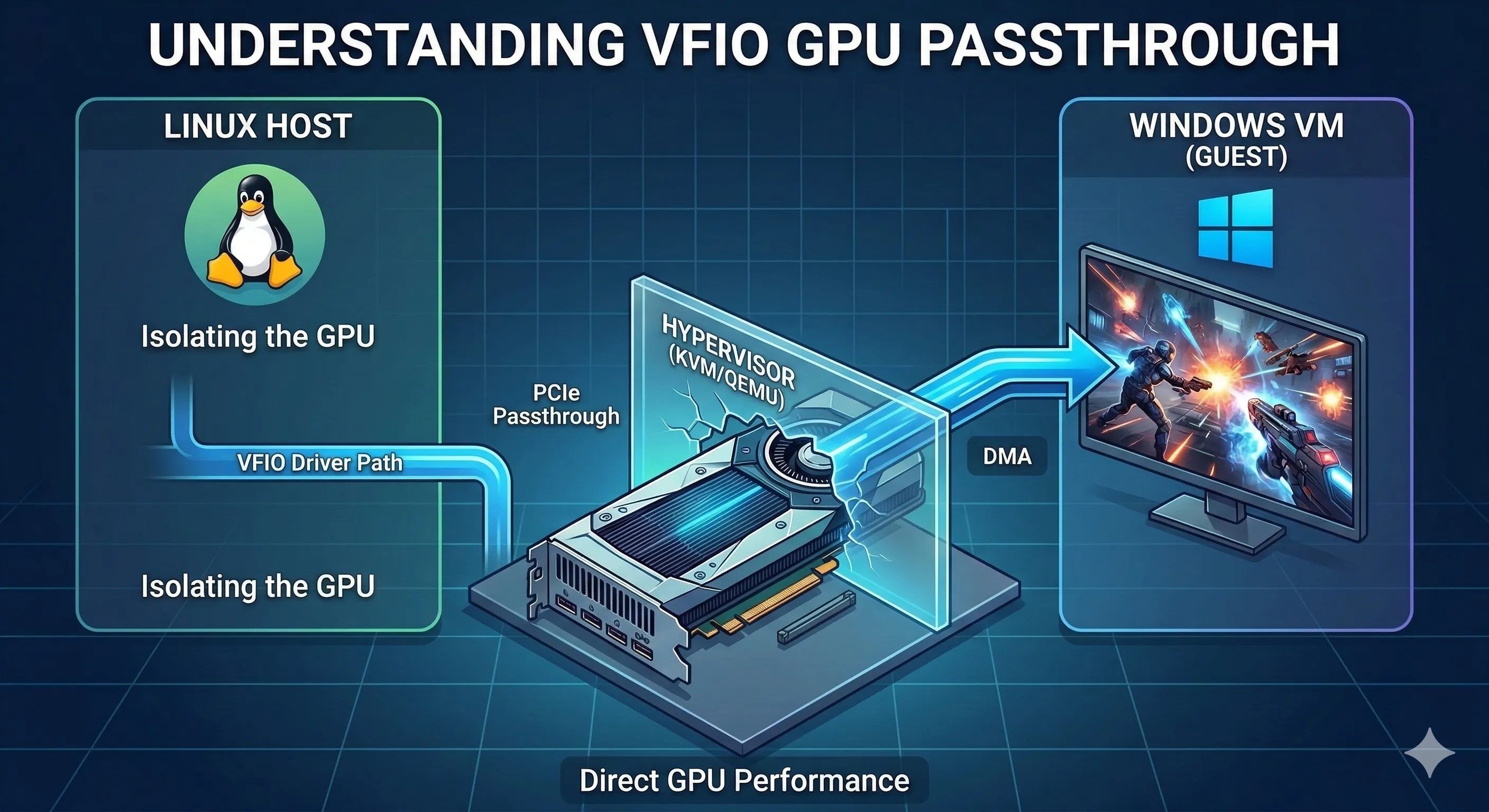
To provision and manage the VM, i used virsh (qemu + KVM), this is a virtualization solution that is characterized by its flexibility and performance, but it is not the most user friendly solution, so be ready to spend some time on the command line and on configuration files. At the beginning i tried, without much thinking, to add a PCI device through the PCI section of the XML configuration file, that didn’t worked so well, the vm add some pretty big issues during boot, and the performance were pretty bad, so i started to do some research and i found out that the problem was that the GPU was not properly isolated from the host, and that is where vfio drivers come into play.
The setup
To create a vm with some serious optimization, i usually start with the cpu configuration, i pin the vm to specific cores, this to avoid any kind of interference with the host, and to ensure that the vm has access to all the resources it needs, then i enable hugepages, this to improve the performance of the memory management, and finally i passthrough the GPU and the USB controller, this to ensure that the vm has direct access to the hardware, and to avoid any kind of latency.
CPU configuration
Libvirt has a pretty comprehensive guide on how to pin a vm to specific cores, you can find it here, but in short, you need to add the following lines to your XML configuration file:
-
To pin the cores:
<cputune> <vcpupin vcpu='0' cpuset='0'/> </cputune> -
To enable hugepage:
<memoryBacking>
  <hugepages/>
</memoryBacking>
Use hugepages only if you are willing to dedicate a good amount of your time figuring out how to properly configure it, and if you have a good amount of RAM, otherwise you will end up with a vm that doesn’t boot or that has pretty bad performance.
PCI configuration
The passthrough of the GPU and the USB controller is a bit more tricky, but it is pretty well documented, a good shortcut (that is what i used) is leveraging cockpit, which is a web-based interface for managing virtual machines, it has a pretty good support for PCI and USB passthrough, and it is pretty user friendly.
VFIO drivers
Normally, when you boot up your machine, PCI devices are handled by the host’s drivers, but when you want to passthrough a device to a VM, you need to isolate it from the host, and that is where vfio drivers come into play, they are a set of drivers that allow you to bind a PCI device to a specific driver, and then passthrough that device to a VM.
How to use vfio drivers
This is the non-trivial part, you need to identify the PCI device you want to passthrough, then you need to unbind it from the host’s driver, and finally you need to bind it to the vfio driver, this can be done through the command line, but it is pretty tedious, so i recommend using a tool like vfio-pci which is a script that automates this process.
In this post i will not do a full tutorial, if you want a more in-details guide this one is a really good one, it covers all the steps needed to properly configure vfio drivers and to passthrough a GPU to a VM.
My experience
I’ve done all this work just to play Destiny 2, and i can say that the experience is pretty good, the performance is decent, and the latency is pretty low, but i only used it for about 6 months, then i started working on my bachelor thesis (May 2025) and i didn’t have much time to play games at home. In the end, i abandoned all the windows related stuff, when i game i do it on my Stem Deck, so i repurposed that machine as a home server, i occasionally hook my old gpu to a Minisforum with a Oculink dock when i really wnat to play with mouse and keyboard, but that is pretty rare, and i don’t have much time to do it, so i just use it as my main workstation.